When collaborating with others, you may need to build a Stepper workflow using a form owned by another Paperform team member. This article outlines how to connect a sub-user Stepper account to the Paperform account that owns the form.
Note: The following instructions are for sub-users of a Paperform account. For more information about sub-users, please see our Manage Users and Teams Guide.
Connect Your Stepper Workflow to another Paperform Team
-
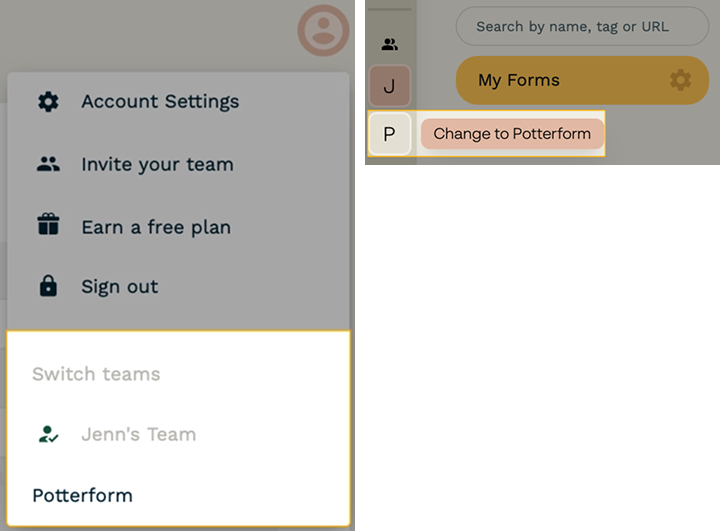
Login to Paperform and switch to the team that contains the form you’d like to create a Stepper workflow with.
You can do this by either clicking on the profile picture in the upper right-hand corner of the screen and clicking the team you’d like to switch to or by clicking the team initials on the left-hand side of the screen.
-
Navigate to the Account Settings → Developer page.
-
Click Create Access Token.
-
Give the Access Token a name and click Ok.
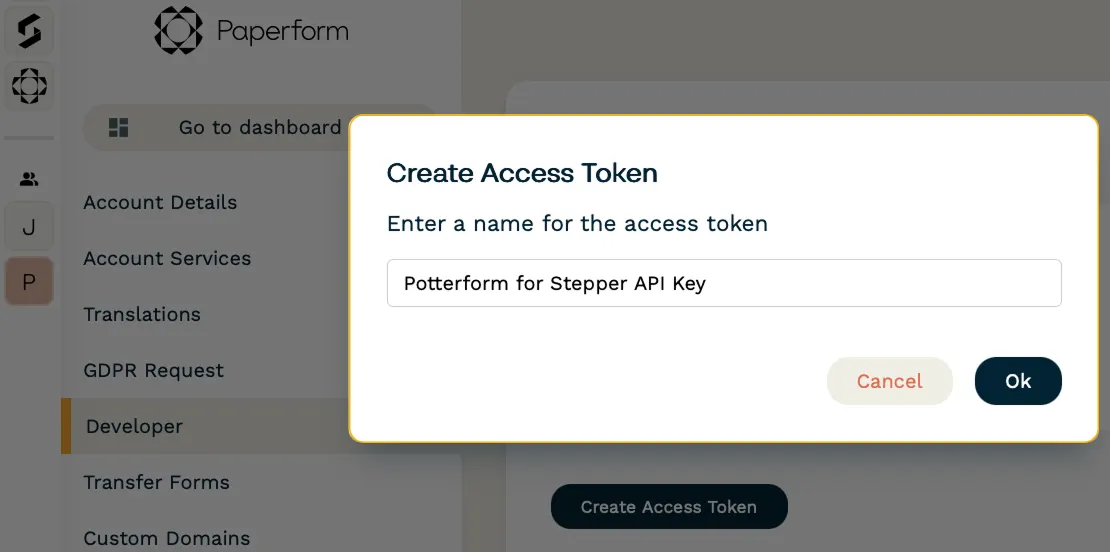
You'll then be presented with an API key.
Do not share this API key. API keys are to be treated like passwords and kept secure.
-
Copy the API key.
-
Switch back to your own personal Paperform account.
-
Open Stepper.
-
Click Connections.
-
Click New Connection.
-
Click Paperform.
-
Paste the API Key in the API key field and click Continue.
If successful, the new connection will show up and the status will be valid:

From here, you can build workflows using the forms you have access to from the other Paperform team.